How to Back Up Telegram Chats (Desktop, Mobile, Auto)
Telegram's cloud sync is not a backup. Export your full history from Desktop, work around the mobile limits, and automate the whole thing.

Telegram's cloud sync feels safe until it isn't. One banned account, one accidental deletion, one lost phone number — and every conversation you had on the platform disappears. Cloud sync was designed for convenience across devices, not as a permanent archive. If you care about keeping your data, you need a proper telegram chat backup strategy that puts the files on hardware you control.
Why You Need a Telegram Chat Backup Strategy
Most Telegram users assume their chat history is safe by default. It's not. Everything — personal messages, group conversations, shared files, channel posts — lives on Telegram's servers and is tied to your account. If you lose access, there's no recovery option. No support ticket will bring it back.
This plays out in predictable ways. A small business owner runs supplier coordination through a Telegram group for years — order confirmations, payment records, delivery schedules — and then the account gets flagged by an automated system. Everything vanishes overnight. Community managers who've spent years curating channels face the same risk. It doesn't matter how much effort went into building it; one account issue erases the whole thing.
The Scale of Potential Data Loss
Telegram hit 700 million monthly active users by 2023, up 230% from 2019. Daily active users reached 55.2 million, with the average person spending nearly 3 hours a month on the platform. That's a lot of data sitting in one place.
The numbers are especially striking in specific markets — India alone saw nearly 84 million downloads in 2023, Russia 35 million. Account bans happen in every market, and when they do, cloud-stored chats get wiped permanently. For a broader look at how this breaks down globally, see these statistics on Telegram's user base by country.
Cloud synchronization is not a backup. Sync mirrors whatever is on the server — if it gets deleted there, it's gone on every device. A backup means having a copy that exists independently of your account status.
The flowchart below illustrates the core problem with relying on Telegram's cloud alone.
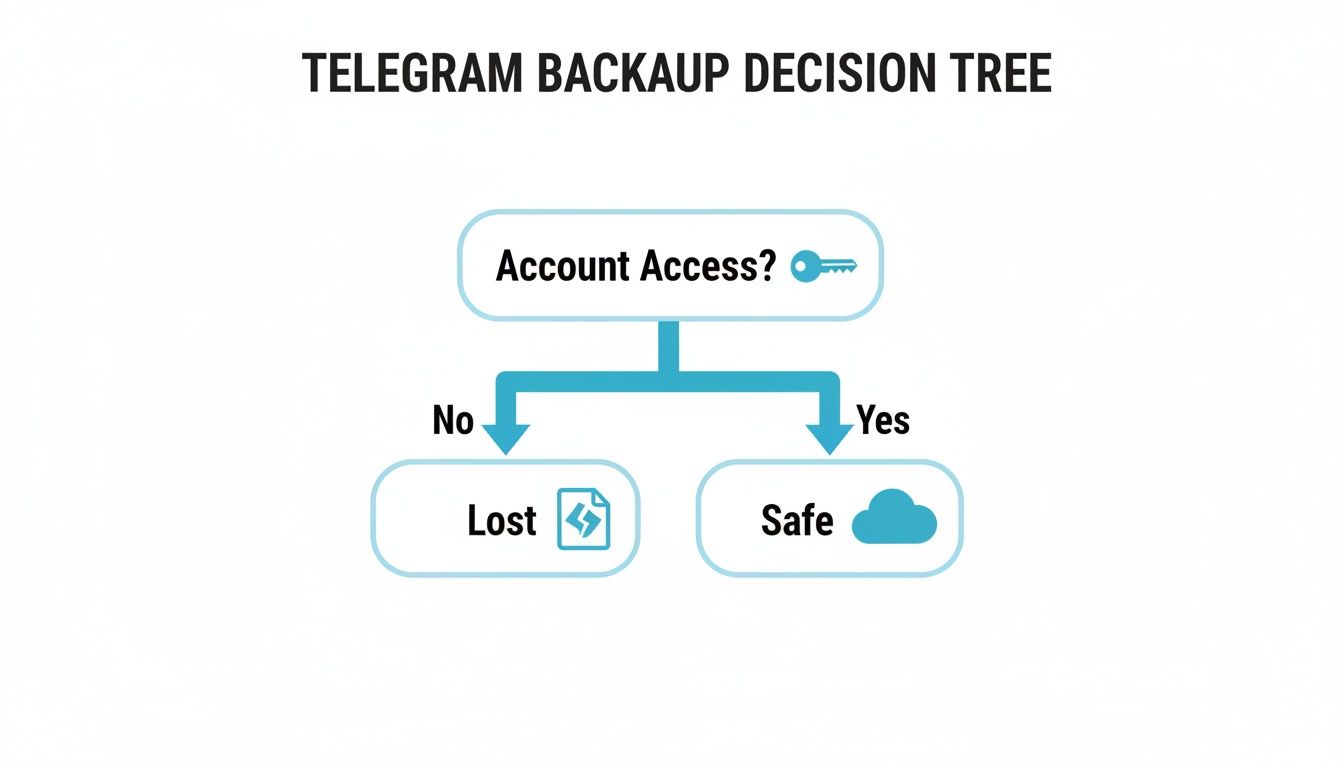
Your account is a single point of failure. Everything downstream depends on maintaining access to it.
What Data Is at Risk
A telegram chat backup covers more than just text. There are several types of data at stake, each difficult or impossible to reconstruct:
- Personal and Private Chats: Conversations with family, friends, and colleagues. Sentimental, private, and irreplaceable.
- Group Chat History: Project discussions, community interactions, announcements — the kind of institutional knowledge that can't be pieced together from memory.
- Channel Content: For creators and businesses, this is intellectual property. Articles, media, subscriber interactions built up over months or years.
- Media and Files: Photos, videos, documents, and voice notes that were often shared exclusively through Telegram. No chat means no files.
Telegram Backup Methods At a Glance
The right backup method depends on what you're trying to save and how hands-on you want to be.
| Method | Best For | Pros | Cons |
|---|---|---|---|
| Telegram Desktop Export | Comprehensive, one-time backups of personal/group chats. | Official, exports all data (text, media, files), highly customizable. | Manual process, not automated, requires a desktop computer. |
| Mobile "Save to Gallery" | Quickly saving specific photos or videos from any chat. | Simple, fast for individual media files, built into the mobile app. | Doesn't save text or context, tedious for large volumes. |
| Third-Party Clients/API | Automated or selective backups for channels and advanced users. | Can be automated, highly flexible, preserves edit history. | Requires technical knowledge, potential security/privacy risks. |
| Statiko | Public channel owners and researchers needing verifiable archives. | Preserves edits/deletions, provides analytics, creates a public record. | Only for public channels, not for private chats or groups. |
The desktop export works best for personal archives. For public channel transparency, tools like Statiko fill the gap that manual exports can't cover.
Using the Telegram Desktop Export Feature
The Telegram Desktop Export is the only official tool for creating a full offline archive of your conversations, media, and account data. It's not a partial save — it produces a complete, searchable backup that you own and can browse without an internet connection.

On a platform with over 700 million monthly active users, where a sudden ban can wipe out years of history, this tool is the most reliable insurance you have. It exports data in either HTML or JSON format, giving you flexibility depending on your needs.
One thing to know upfront: if you've been on Telegram for years, especially in high-adoption countries like Indonesia (24.34 million downloads) or Brazil (22.83 million), the export will take time. Hours, not minutes. Plan accordingly. For more detail on what to expect, check out this guide on Telegram's data export process.
Choosing Your Export Format: HTML vs. JSON
Telegram gives you two format options, and the right choice depends entirely on what you plan to do with the data.
- HTML: Creates a self-contained offline website. Your chats look almost exactly like they do in the app — browsable, searchable, and familiar. This is what most people want.
- JSON: Outputs structured data files meant for programmatic processing. Useful if you're a developer or analyst who wants to run scripts against the data, build visualizations, or import it into another tool.
For a standard telegram chat backup, HTML is the better choice unless you have a specific technical reason to use JSON.
Navigating the Export Settings
You'll need the Telegram Desktop app installed on Windows, macOS, or Linux. Once logged in, go to Settings > Advanced > Export Telegram Data. For a full walkthrough of the export process and format options, see our guide to exporting Telegram chats.
The export panel gives you fine-grained control over what gets included. You can toggle specific content types on and off, which directly affects how long the export takes and how large the output is. Disabling video downloads, for example, can cut a multi-hour export down to minutes.
For your first backup, consider running two passes. Export text only first — that secures your conversations quickly. Then run a full export with media overnight.
Customizing Your Data Export
The export tool gives you granular control over what ends up in your backup:
- Chat Selection: Export everything, or pick specific private chats, groups, and channels individually.
- Media Types: Toggle photos, videos, voice messages, stickers, GIFs, and files separately.
- Date Range: Limit the export to a specific time window instead of pulling your entire history.
- Size Limit: Cap the maximum file size for individual media items to keep the backup manageable.
After configuring your settings, click "Export" and keep the computer running with an active internet connection. Interruptions can force you to restart the whole process.
The result is a neatly organized folder you can browse offline — the most reliable way to create a lasting telegram chat backup.
Practical Mobile Backup Workarounds
The desktop export covers everything, but most of us aren't sitting at a computer when we suddenly need to save something from a chat. A few mobile workarounds can help preserve important data on the spot, though they come with real limitations.
These methods work as stopgaps, not substitutes. They capture specific pieces of information but miss the depth — metadata, searchability, full context — that a proper Telegram chat backup provides.

Leveraging Saved Messages as a Quick Archive
Telegram's "Saved Messages" is essentially a private chat with yourself. Long-press any message, tap "Forward," and send it to Saved Messages. It's useful for stashing receipts, important links, or files you don't want to lose in a busy group chat. Not a backup in any real sense, but a decent way to keep individual items accessible.
Capturing Moments with Screenshots and Screen Recording
Screenshots preserve a conversation exactly as it appeared on screen — useful for specific exchanges or agreements you might need to reference later. For content that involves motion or audio, both iOS and Android have built-in screen recording.
Mobile methods are useful for triage. But they don't capture message timestamps, sender IDs, or edit history — all things that a desktop export preserves automatically. On why Telegram edit history is hard to reconstruct after the fact, see the dedicated guide.
The Inherent Limitations of Mobile Workarounds
Before relying on these methods for your Telegram chat backup, understand what you're giving up:
- No Searchable Text: Screenshots are images. You can't search for a keyword inside them, which makes finding anything later frustrating.
- Missing Metadata: Timestamps, message IDs, sender details — all lost. This matters for business records and legal documentation.
- Incomplete Context: Capturing a long conversation through screenshots produces fragments, not a coherent record.
- Manual and Tedious: Doing this at scale for an active group or channel isn't realistic.
Use mobile workarounds when you need to save something urgently. For everything else, schedule a proper desktop export.
Taking Your Backups to the Next Level with Automation
If you're managing a large channel, monitoring competitors, or collecting data for research, manually running exports on a schedule doesn't scale. You need automation.
A scheduled, automated telegram chat backup turns occasional archiving into a consistent process. Data gets captured on a recurring basis without manual intervention.
The most flexible approach is working directly with Telegram's API. The API is just the official interface developers use to interact with the platform. With a straightforward script, you can schedule automatic archiving of specific channels at whatever frequency makes sense.
Harnessing the Power of the Telegram API
You'll need basic Python knowledge. Libraries like Telethon and Pyrogram abstract away the authentication and protocol details, so you can focus on the logic.
A typical automated setup might look like this — say you're tracking a competitor's public channel:
- Script authenticates with your Telegram account.
- Connects to the target channel.
- Downloads all new messages, photos, and files since the last run.
- Saves data in a structured format (JSON or CSV) for analysis.
- Uploads the archive to cloud storage — Google Drive, Dropbox, or TeraBox for video-heavy archives where you also want on-demand streaming.
Run this nightly via cron or a task scheduler, and you build a complete historical dataset without touching it again. Keep the schedule and target list in a versioned config rather than hardcoded in the script. For a broader look at monitoring tools that complement this kind of workflow, see our guide on the best Telegram monitoring tools.
What Can You Do with Automated Backups?
Automating your telegram chat backup opens up uses that go beyond simple data preservation:
- Competitor Analysis: Archive competitor channels automatically to track posting frequency, content types, and engagement trends over time.
- Data Analysis: Build structured datasets from public channels to analyze discourse patterns, public sentiment, or emerging trends at a scale that manual collection can't match.
- Content Archiving: Maintain a private, searchable copy of your own channel. If your account is ever compromised, your content survives.
Automated backups aren't just a safety net. They're an intelligence tool — they let you systematically collect data that would be impractical to gather by hand.
A Quick Warning About Third-Party Bots and Clients
You'll find third-party bots and unofficial Telegram clients that promise one-click automated backups. Be cautious. These tools typically require your phone number, password, and sometimes your two-factor authentication code. Handing over those credentials gives a third party full access to read your messages, browse your contacts, and potentially take over your account.
Stick to official methods: the Telegram Desktop export or the official API through established libraries like Telethon. The setup takes more effort, but your credentials and data stay under your control. No convenience feature is worth compromising your account security.
Archiving Dynamic Channel History with Statiko
A standard telegram chat backup produces a snapshot — accurate at the moment it was created, then frozen. For personal archives, that's fine. For anyone analyzing public channels, it has a blind spot: it can't capture what happened between exports.
If a channel posts something controversial and deletes it an hour later, your backup either shows nothing or the edited version. You miss what actually happened.
Moving Beyond Static Snapshots
A static export answers "what does this channel look like right now?" But for analysis, the more interesting question is often "how has this channel's content changed over time, and what was removed?"
Continuous monitoring solves this. A service that watches public channels in real time can record every edit and every deletion, producing a complete version history rather than a single frozen frame. You see the original text, the edited version, and the timestamps of each change.
A static backup shows you the finished painting. A dynamic archive shows you every draft, every correction, and every stroke the author tried to erase.
Recovering Deleted Posts and Edits
This is what Statiko provides for public Telegram channels — continuous monitoring that builds a verifiable, immutable history without relying on manual exports.
- Edit Tracking: When a message is edited, Statiko saves both versions with timestamps. You can see exactly what changed and when.
- Deletion Recovery: Deleted messages don't disappear. Statiko preserves them, maintaining a complete record of everything that was posted, even content that was removed seconds later. For options beyond public channel monitoring, see our guide on recovering deleted Telegram messages.
This turns a telegram chat backup from a data dump into something far more useful. Marketing teams can watch how competitors refine their messaging. Researchers can track how narratives shift. Channel owners get a permanent record of their own output.
Turning Data into Actionable Insights
The limitations of Telegram's native cloud storage have given rise to an ecosystem of backup and analysis tools, serving the platform's 55.2 million daily active users. Open-source projects on GitHub can process chat exports to surface metrics like per-user word counts reaching 500,000 or thousands of tracked edits within a single channel.
These tools work well for analyzing static data. Statiko goes further for public channels by adding deletion recovery and AI-powered analysis. By preserving the full dynamic history — not just the latest version — it enables deeper work. Marketers can observe competitor content strategies as they evolve, journalists can verify public statements against the original record, and channel admins maintain accountability through a complete audit trail.
If you manage or analyze public channels, learn more about Statiko and how it creates a living archive that static exports can't replicate.
Telegram Backup FAQ
Taking control of your data raises practical questions. Here are the ones that come up most often.

Can I Just Back Up Everything from My Phone?
No. Telegram's mobile apps don't have a full export feature. The only official way to create a comprehensive telegram chat backup is through the "Export Telegram Data" option in Telegram Desktop. Mobile workarounds like forwarding to Saved Messages or taking screenshots capture fragments, not a complete searchable archive with metadata intact.
What About My Secret Chats? Are They Included in the Backup?
No, and by design. Secret chats are end-to-end encrypted and stored only on the devices involved — never on Telegram's servers. Since the desktop export pulls data from the cloud, it can't access device-specific conversations. If you lose the device where a secret chat took place, that history is gone permanently. No backup method can recover it.
How Long Is This Export Going to Take?
Anywhere from a few minutes to over twelve hours, depending on two factors:
- Account age: Years of text messages add up.
- Media volume: Photos, videos, and large files are what slow things down the most. A text-heavy account exports much faster than a media-heavy one.
For large exports, start the process before bed on a machine that won't go to sleep. Let it run overnight.
Your export is a snapshot — a historical record up to the moment it finishes. It won't update itself afterward.
So, Does My Backup Update When I Get New Messages?
No. A desktop export is frozen at the point it completes. New messages, edits, and deletions that happen afterward won't appear in it. To keep your archive current, you need to re-run the export periodically.
For anyone who needs a continuously updated record — especially for public channels — the practical answer is automation through the Telegram API. Write a script that fetches new data on a schedule. It requires more setup, but it's the only way to maintain something close to a real-time backup. Our guide on Telegram for OSINT covers related methods for systematic data collection.
Can I transfer my Telegram chat backup to a new phone?
Telegram syncs your cloud chats automatically when you log in on a new device, so there's nothing to transfer manually for regular conversations. However, secret chats are device-specific and cannot be moved. If you created a desktop export (HTML or JSON), those files live on your computer and can be copied to any device — they're just regular files in a folder.
Is it possible to back up a Telegram group I don't own?
Yes, as long as you're a member. The Telegram Desktop export lets you select any chat you participate in, including groups you didn't create. You'll get the full message history visible to you, along with any media shared in the group. The only exception is content posted before you joined — Telegram may limit how far back your history goes depending on group settings.
Will the other person know if I export our chat?
No. Telegram does not notify anyone when you use the desktop export tool. The process runs entirely on your end, pulling data from Telegram's cloud servers to your local machine. There's no indication in the chat or any alert sent to the other participants.
Can I import a Telegram backup into another messaging app?
Not directly. Telegram's export formats (HTML and JSON) aren't compatible with other messaging platforms out of the box. The HTML export is meant for offline browsing, and the JSON export is structured data you'd need to transform with a custom script. Some community-built tools on GitHub can convert Telegram JSON exports into formats other apps accept, but expect to do some manual work.
How much storage space do I need for a full Telegram chat backup?
It depends almost entirely on media. A text-only export of even years of conversations rarely exceeds a few hundred megabytes. Add photos and it grows to several gigabytes. Include videos and large files, and you could easily need 50-100+ GB. The desktop export tool lets you set file size limits and toggle media types, so you can control this before starting.
For anyone managing a public channel — whether for news, research, or marketing — a standard backup only shows what exists right now, not what was posted and later changed or removed. Statiko provides a living archive that tracks every message edit and deletion, giving you a complete, transparent history. Build a dynamic archive for your public channels at https://statiko.io.
Related posts

Master Telegram OSINT with our 2026 guide. Learn profile discovery, channel analysis, network mapping, and the best tools for open-source intelligence research.

Unlock growth with our guide to Telegram channel analytics. Learn to track key metrics, analyze competitors, and make data-driven decisions for your channel.

Which monitoring tools actually cover Telegram? A Telegram-first comparison of native channel trackers and the big social listening suites, with pricing and trade-offs.
Start in seconds.
Create a free account to organise channels, track activity, and get recaps delivered to you.
Real-time. Telegram. Analytics.